Secretlab
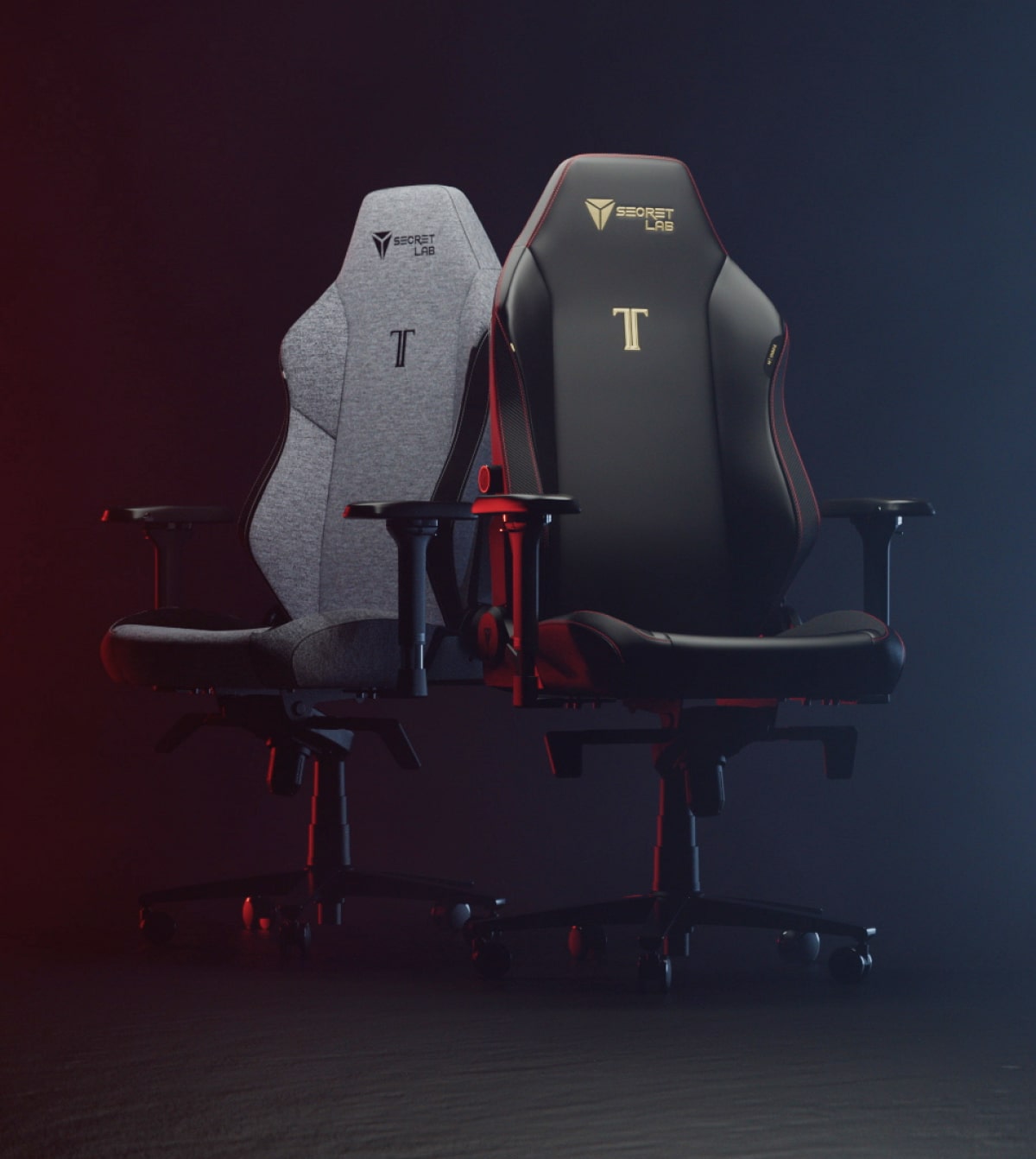
Secretlab Gaming Chair
Published: March 6, 2026
Video Description
Want to see fuel range, tire pressure, weather, Apple Music controls, and more directly inside Apple CarPlay? In this video I revisit the Sidecar CarPlay app to show what’s changed, how it works, and how you can add vehicle data widgets to Apple Maps navigation using an OBD2 adapter.
I’ll also show you how to customize the widgets, track trip history, monitor engine data, and add the Sidecar widget to your CarPlay dashboard.
Apps
Sidecar - https://apps.apple.com/us/app/sidecar-automotive-assistant/id1663683832
🛒BUY THE ODB2 SCANNER HERE ( its cheaper)
My ODBii Reader choice - Vgate vLinker MC+ - https://amzn.to/3AJBluS
Timestamps:
0:00 Intro
0:45 What Sidecar is
0:59 Satellite view + main layout
1:31 Widget page overview
2:02 Extra tools (VIN, trip history, scanner)
2:31 OBD2 adapter features + live vehicle data
3:35 Navigation + search in Sidecar
4:40 Do you need the OBD2 adapter?
5:15 Garage setup + adding vehicles
6:16 Widget customization (full layout)
7:16 Best widgets (range, compass, speed, fuel, etc.)
8:02 Tile / navigation / instrument cluster layouts
9:00 Final thoughts on Sidecar
10:00 How to add Sidecar widgets to CarPlay
10:56 Outro
Instagram: @eddien7
X: @HOTSHOTN7
Twitch: @hotshot2ss
🔥 Exclusive Viewer Promotions and Discount Codes! 🔥
Try Audible and Get TWO FREE Audiobooks!: https://amzn.to/2QjQJCM
Try Amazon Prime 30-Day FREE TRIAL: https://amzn.to/2Qq2k3i
Amazon FreeTime Unlimited FREE Trial: https://amzn.to/2W1fsBI
🎥 Equipment Used in This Video:
Chair by Secretlab: https://bit.ly/2SEFhSa
Microphone: DJI Mic - https://amzn.to/3RQYoqA
Camera: Sony Alpha A6600 - https://amzn.to/3d0uKQU
Disclaimer: Our links may be affiliated with Amazon and other stores. To find out more, click here: http://bit.ly/2DiiOVI